
Original recording
Map a tab to a recording, and the cursor follows the music. You can use a YouTube video or an audio file on your device.
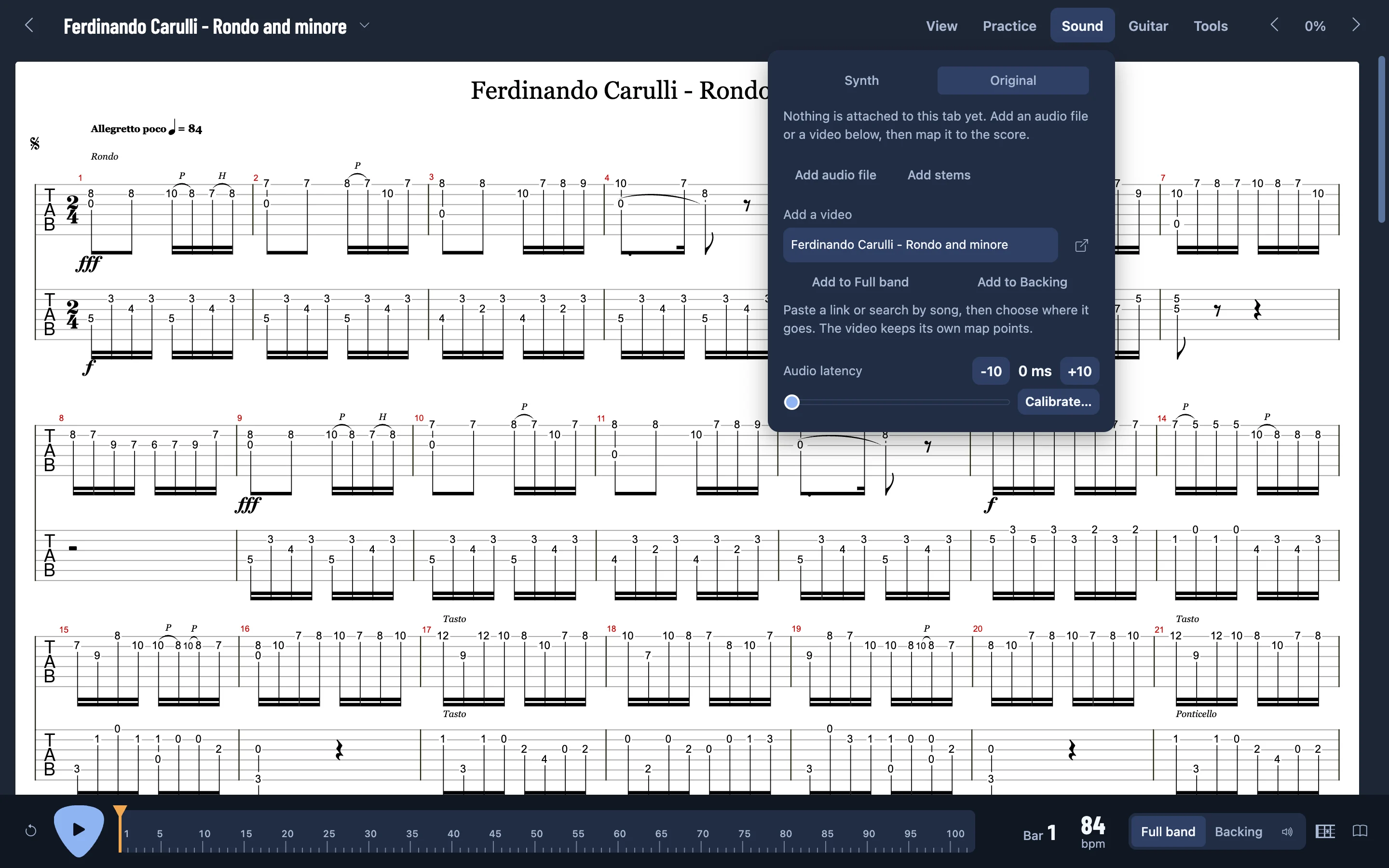
Add a recording
- In the dock, select Original. If you haven't added a recording, its settings open.
- For an audio file on your device, select Add audio file and choose the file.
- For YouTube, enter a link or video ID under Add a video, or search by song. A link or ID is added as you entered it. A search adds the first match. Select Add to Full band or Add to Backing to choose where the video goes and add it.
The list Recordings for this tab shows everything you added: audio files, then videos. A Guitar Pro file that carries its own audio adds a row at the top, Audio in the Guitar Pro file. When the recordings came from a song pack, each is listed by what the pack says it is: the original first, then alternate versions, then other kinds such as live, then backing tracks. The pack's own name for a recording is its title, and a backing track made without a part says so (for example, Without Drums). A part split from a mix sits under that mix. Recordings you added yourself follow the pack's, the newest first. Select a row to use it as the sound. Each recording keeps its own map points. Select Edit recordings… to move a recording to the other part (Full band or Backing) or remove it and its map points. Audio files stay on your device. They're included in backups and cloud sync unless you turn that off.
Map the recording by tapping
A map tells MajesticTab which bar of the tab plays at which time in the recording. The recording bar above the bar ruler shows the state of the map: Not mapped, Partly mapped, Mapped or Check bar with a bar number. Everything you do to map a recording starts there.
- In the recording bar, select the state, such as Not mapped. On a Guitar Pro tab, the Map sheet opens.
- In the Map sheet, select Tap along.
- Play the recording. Tap each bar of the tab when you hear it.
- Select Done. The Map sheet opens again and tells you whether the recording is mapped, and which bars to fix if it is not.
On a PDF or text tab, selecting the state starts tapping straight away, and the recording bar has the controls for it.
After you map a recording, the cursor follows it through tempo changes. The metronome and count-in follow it too. Mapping works for Guitar Pro, PDF and text tabs.
The tap controls show play, back 5 and 10 seconds, speed, Undo and Done. More opens Fix range, the tap Offset, Calibrate, Snap for an audio file, Redo, Timeline and Edit points. Calibrate measures how long you take to tap after you hear a sound, and removes that delay from every tap.
Correct map points
When a recording has map points, select its state in the recording bar, such as Mapped, to open the Map sheet. It tells you what looks wrong: a bar whose point looks out of place, or bars with no point. From the sheet you can:
- Select Tap along again to tap over the bars that drift. In tap mode, select More and then Fix range to redo a stretch of bars.
- Select Edit points to open the points. There you can nudge a point, play two seconds around it to check it, move it to the nearest sound in the recording, shift every point at once, or delete a point.
Reuse map points
In the Map sheet, select Use another recording’s map to copy the points of another video or file of the same tab. If the other recording is an audio file and so is this one, MajesticTab lines them up by the sound. Otherwise it copies the times as they are. Then the points open so that you can shift them by ear. If this recording already has points, you select the other recording twice to replace them.
Select Use another tab’s map to copy a mapped video from another tab of the same song. Select Import points… to load points from a file or an address.
Add a backing track
Switch the panel from Recording to Backing to attach a separate backing track to the same tab. Map it the same way. Then you can switch between the original recording and the backing track. To make the backing track follow the original recording’s points, turn on Use the original recording’s map in the Map sheet.
Change the speed
The original recording has its own speed options: 50%, 75%, 100% and 125%.
Use a recording in a Jam
Guests don't hear a local audio file from the host. They follow the host's YouTube video or the synth. See Jam sessions.