
View
View controls how the score looks: its layout, its notation, its size, its paper and which tracks it shows.
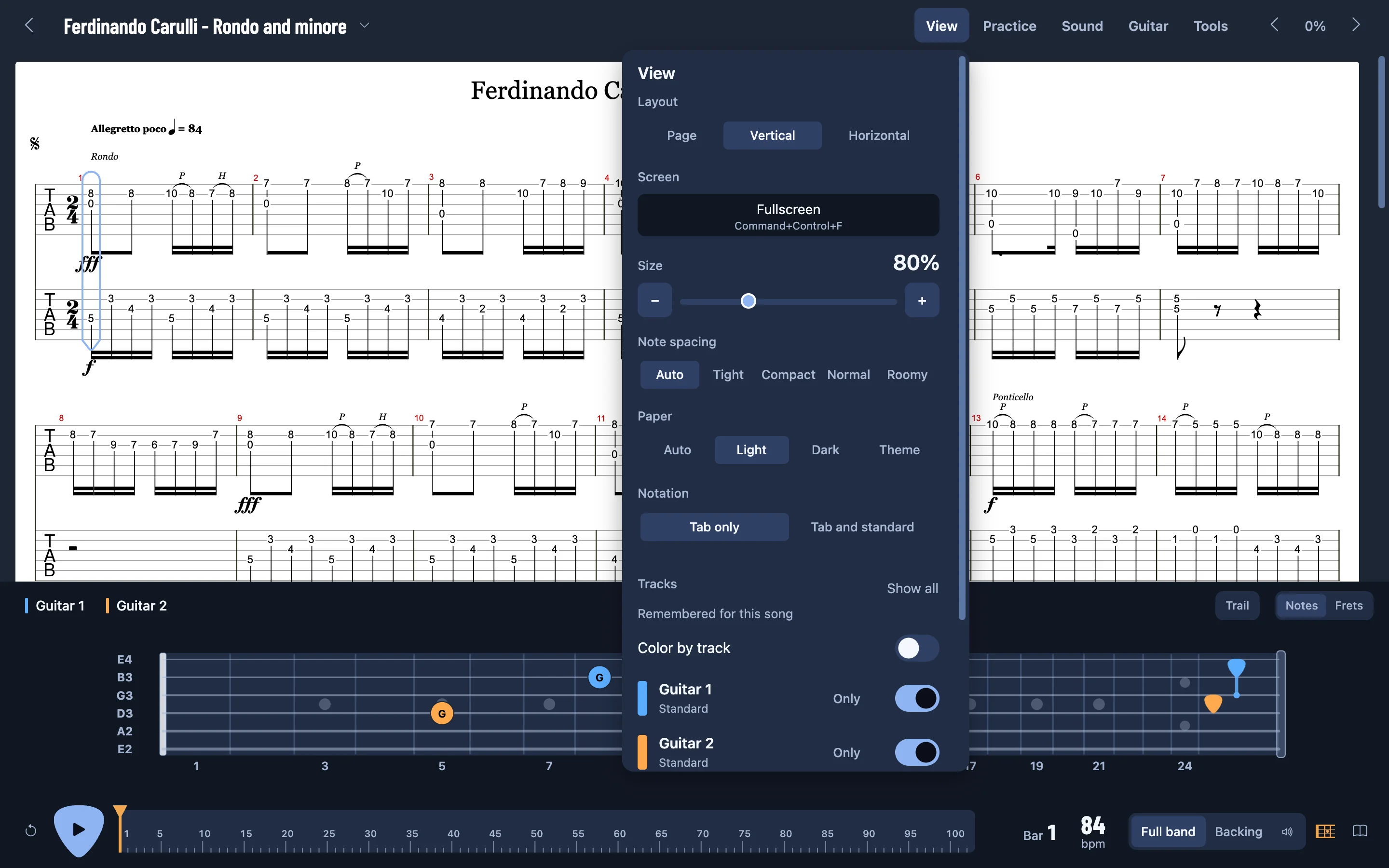
Choose a layout
Select Page for book-like pages or Scroll for one continuous score. In landscape, you can show as many pages as fit, or one page. You can also choose whether a page turn moves one page or the whole view.
View changes these options for the song you have open. To set the usual layout for each file type, use A new tab opens as under Reading in Settings.
Choose notation
Select Tab Only or Tab + Standard.
Set the size and paper
To zoom the score between 50% and 150%, use the size control, pinch on a touch screen or trackpad, hold Ctrl and use the mouse wheel, or push the right stick on a game controller. The paper can be Auto, Light or Dark.
Choose which tracks to show
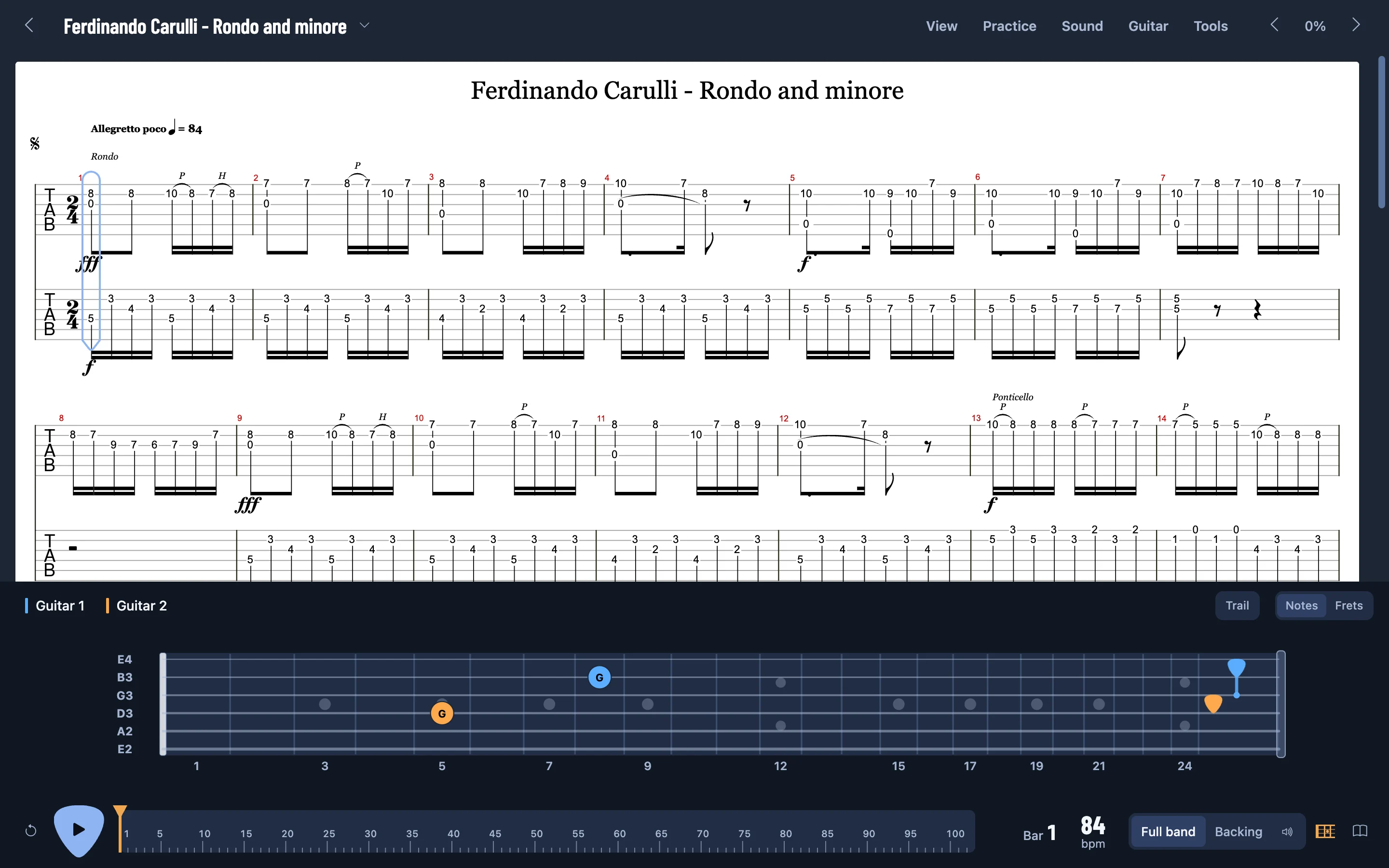
When a file has more than one track, View lists the tracks. MajesticTab stacks the guitar tracks on the page and keeps drums, bass, keys and vocals out of the way. It remembers your choice for each file.
- Show all draws every track.
- Color by track gives each track its own color in the score and on the fretboard.
Change the theme
MajesticTab has nine app themes. Each theme has a light or dark sheet. To change the theme, open Settings and select Appearance. See Settings.