
The reader
The reader has five controls and one playback dock. The controls use the same names on every platform.
In this guide, select means click with a mouse or tap on a touch screen. Where an action also works from a keyboard or a game controller, the guide gives those ways too.
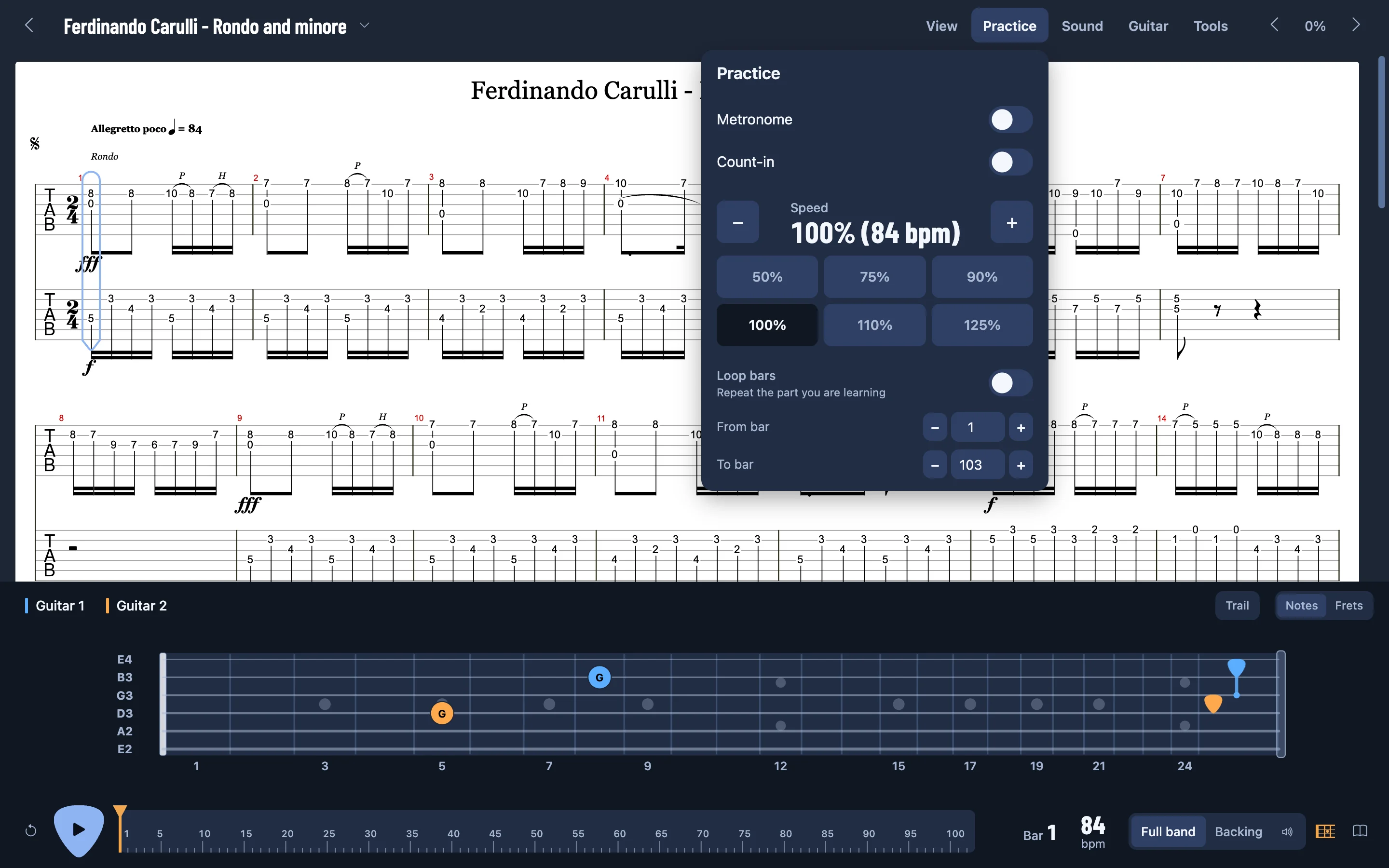
Use the five controls
- View
- Layout, notation, size, paper, the pages shown, and which tracks are drawn.
- Practice
- Speed, parts, the loop range, the metronome and the count-in.
- Sound
- The settings for the sound you selected in the dock, either the synth or the original recording.
- Guitar
- Strings, tuning and capo for your guitar.
- Tools
- Chord library, scales, circle of fifths, tuner, metronome and Jam.
Open the song menu
Select the song name in the top bar to open the song menu. It contains these items:
- Pin, Save to library and Add to setlist
- For PDFs, Condense PDF and Bookmarks
- Export source tab, Export song file (.mpak), Share original file, Share as song file (.mpak) and Export as PDF
Use the dock
The dock contains the playback controls, the Synth and Original switch, the volume control and a button for the fretboard. The switch only chooses which sound you hear. If you select Original before you add a recording, its settings open so you can add one.
Move through a song with the bar ruler
On a Guitar Pro tab, the bar ruler shows the whole song as one strip. It divides the song into sections, such as verse, chorus and solo, and shows a name on each section that has room for one. To move the playhead, select a point on the ruler or drag along it. When the ruler has focus, you can also use the arrow keys. While you move the playhead, a readout shows the section and bar. PDF and text tabs have a page strip instead.
Turn pages and move the cursor
- In page mode, select the right half of the score for the next page and the left half for the previous page, or select Next page or Previous page in the top bar. On a touch screen, you can also swipe left for the next page and right for the previous page. On a keyboard, press the arrow keys, Page Up or Page Down. On a game controller, press RB or LB. A foot pedal that sends arrow keys also works.
- In scroll mode, the score scrolls. Use the mouse wheel, a swipe, the arrow keys or the left stick on a game controller. Select a beat to move the cursor to it.
- On a phone, use the bar ruler to move the cursor.
- To zoom between 50% and 150%, pinch on a touch screen or trackpad, hold Ctrl and use the mouse wheel, or push the right stick on a game controller.
Hide the controls with Reading mode
To hide the top bar and the controls, select Reading mode in the dock, press R, or press Y on a game controller. On desktop, Reading mode is also under Screen in the View panel. Only play and pause, the progress track and the Reading mode button remain. Nothing hides on its own. Scrolling, timers, taps and playback leave the controls where they are. To show everything again, use the same control again.
Use the reader on a phone
In portrait, the top bar is one slim row with the back button, the song name and the page buttons. The five controls are at the bottom, above the playback strip. In landscape, the five controls move to a rail.